How to create a project card in Liquid Brain Desk
Short answer
Open New card, choose the destination project, fill the required fields and select Create. A card records project work; creating it does not start an agent or schedule automation.
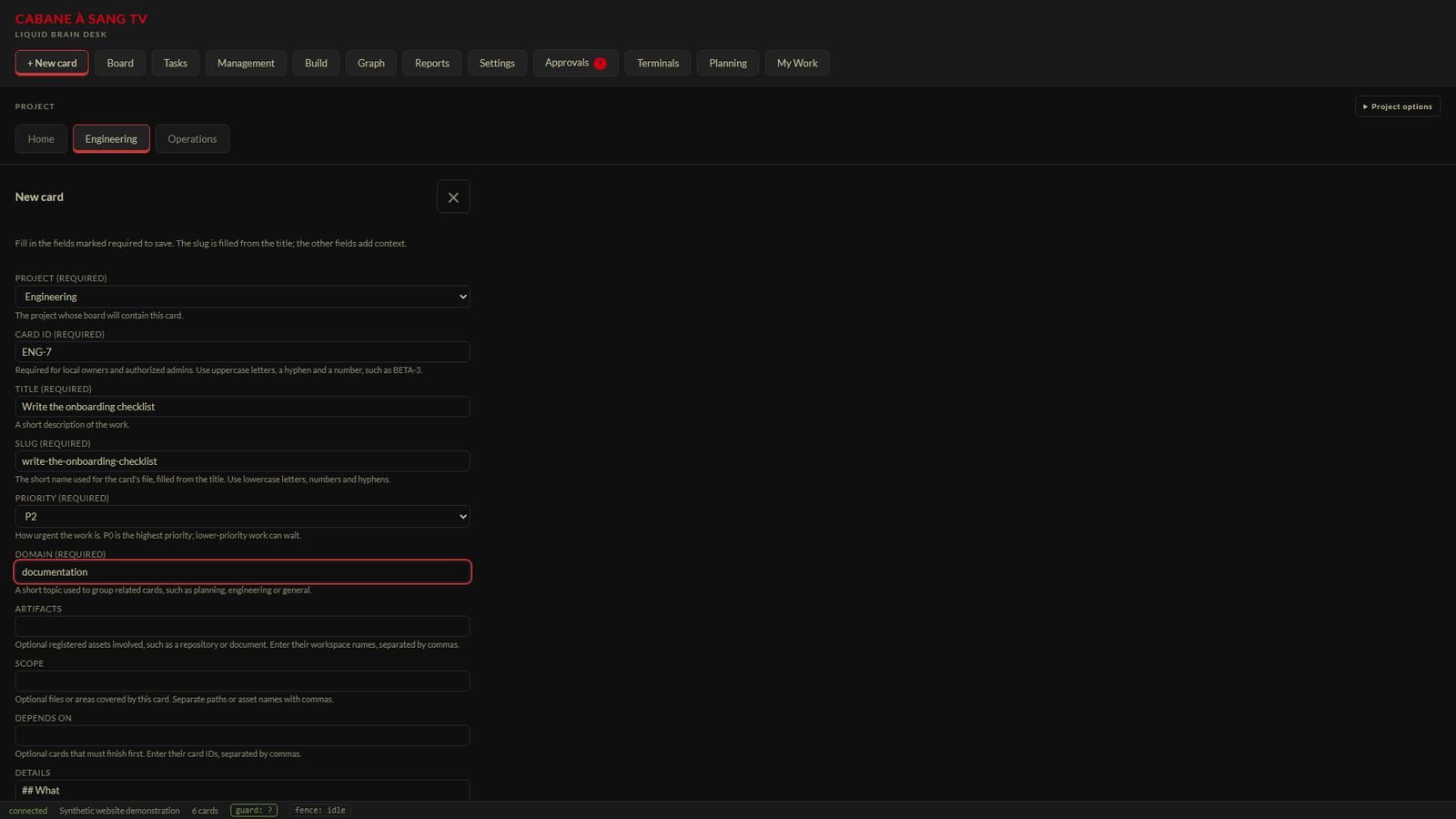
Before you start
Use the configured Windows Desk development candidate with a writable project. This guide follows the local-owner form. Shared contributors may receive an automatically assigned card ID. Choose an unused ID and describe one clear outcome.
What the required fields mean
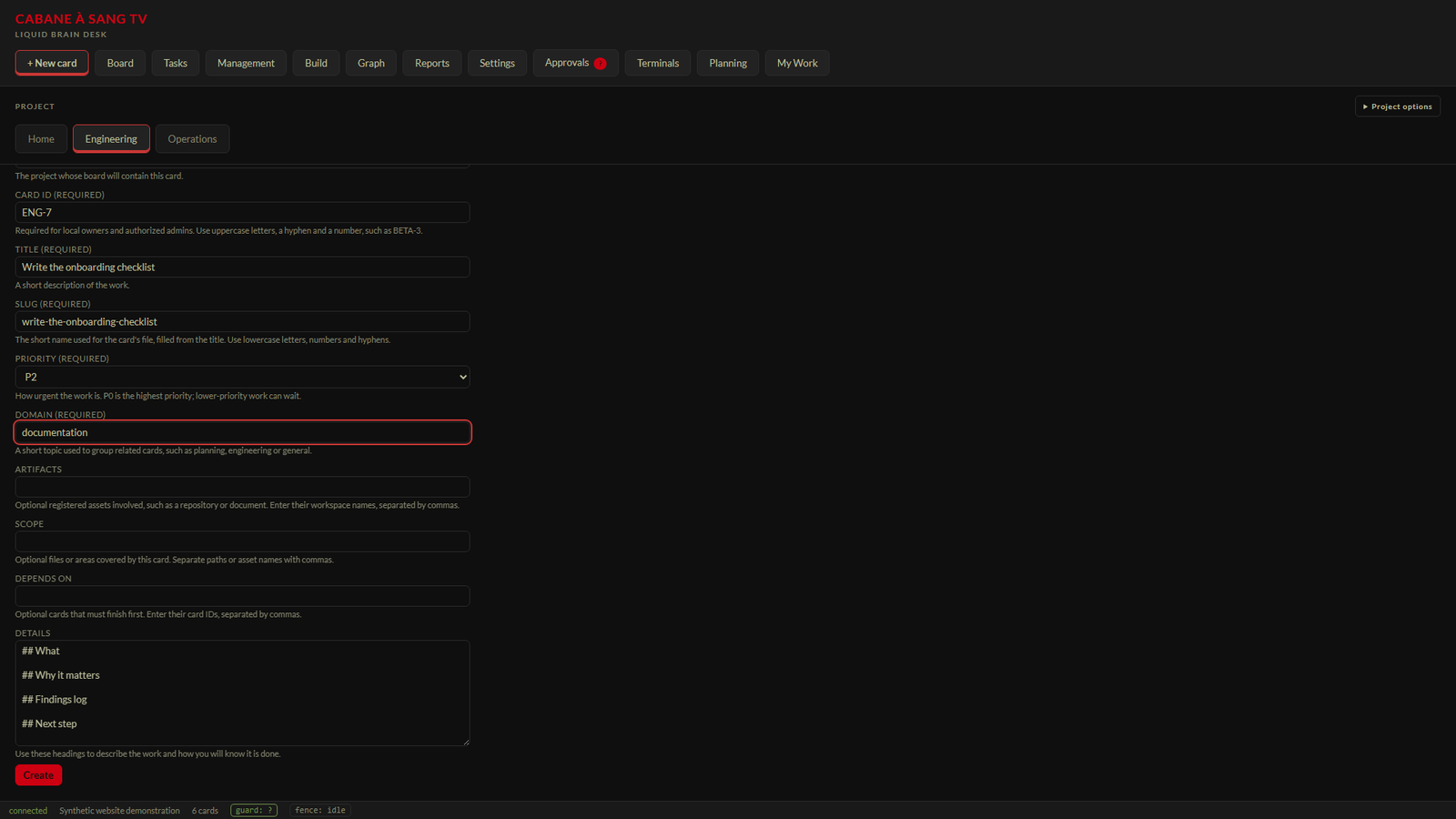
Project selects the board that will contain the card. Card ID is the stable identifier, such as ENG-7, for local owners and authorized admins. Title is a short description of the work. Slug is the lowercase file-name component and fills from the title. Priority expresses urgency; P0 is highest. Domain is a short grouping topic such as documentation or engineering.
Add context that makes the work actionable
Artifacts names registered workspace assets. Scope describes the files or areas involved. Depends on accepts comma-separated card IDs in this candidate; the grouped selector is not yet integrated. Details contains headings for the work and its completion criteria. Scope is optional when creating the card, but execution workflows can require an explicit scope and separate authority.
Open + New card in the top navigation. Select the destination in Project; do not rely on the previously viewed project. Enter an unused Card ID if the form requires one, then a descriptive Title. Review the generated Slug, choose Priority, and enter Domain. Add relevant artifacts, scope, dependencies and completion criteria in Details. Select Create, then verify the project label and saved card that opens.Steps
Expected result
After a successful create, Desk refreshes the board and opens the created card. Confirm the project label, title and ID. The October 17 owner walkthrough confirmed creation and opening under the intended Beta project.
If the card does not appear
Check the selected project, required fields and any validation message. Use the displayed Retry flow after a network failure rather than repeatedly creating new IDs. If the card is saved but hidden, clear board filters and check the project selection. A failed request is not evidence that a card was saved.
Related questions
- What is the difference between a card and a task?
- A card is the project work record. A task is an explicit automation schedule. Creating a card alone starts neither an agent nor a schedule.
- Why is my Card ID disabled?
- The shared-contributor form assigns the ID automatically. Local owners and authorized admins use the required explicit-ID field.
- Does entering Scope approve agent execution?
- No. Proposed work scope and approved execution authority are separate.